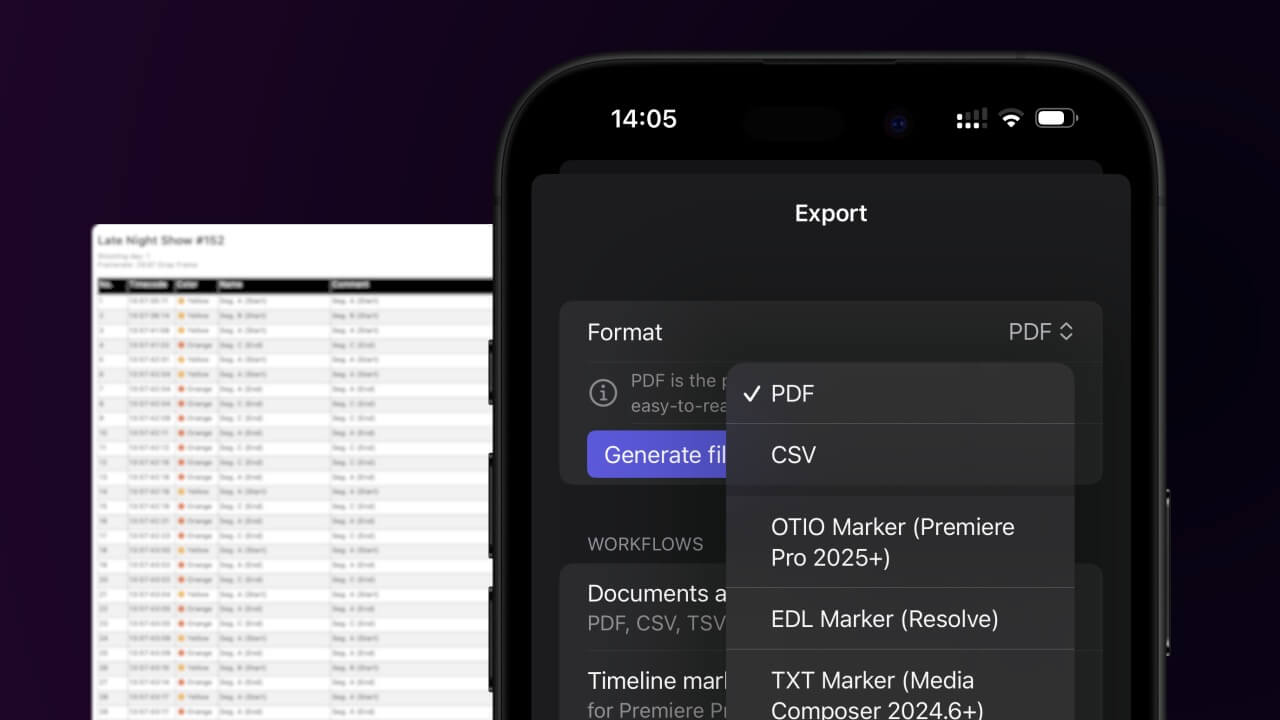
1. Export a CSV file from Live Timecode Notes app
Open the project in the app, then select "Export Notes" from the top menu. Select "CSV". Generate and save the file.
2. Use the "标记转换器" to convert the CSV file into a YouTube Chapter Markers (.txt) file
Open the free 标记转换器, select "CSV" and set "convert" to "YouTube Chapter Markers (.txt)". Generate and download the file. 如果您在转换文件时遇到问题,可以联系免费支持。
Ensure that the CSV file contains columns labelled "Timecode In", "Name" and "Comment". Otherwise, it will not work. You can also add columns for 'Colour' and 'Timecode Out'.
3. Copy Chapter Markers into the video description
Open the generated .txt file. Copy and paste the newly generated markers into your video's description.
🚀 完成
暂时就是这些!如果您觉得本教程有用,请分享它以支持我们。如果您对改进工作流程有任何建议,请告诉我们!