1. Export a CSV marker file from Pix
Open the comments panel on the right side in Pix. Press the three dots and select "Export". Now you can then download the CSV file from Pix.

The timecode in Pix starts with 00:00:00:00 for each clip, so you may need to use the offset function on EditingTools.io to sync it with you timeline or move it manually in your NLE (editing software).
2. Use the "标记转换器" to convert the CSV marker file into a CSV file
Open the free 标记转换器, select "Pix Systems > Comments (.csv)" and set "convert" to "CSV for Google Sheets". Generate and download the file. 如果您在转换文件时遇到问题,可以联系免费支持。
3. Import the CSV file into Google Sheets
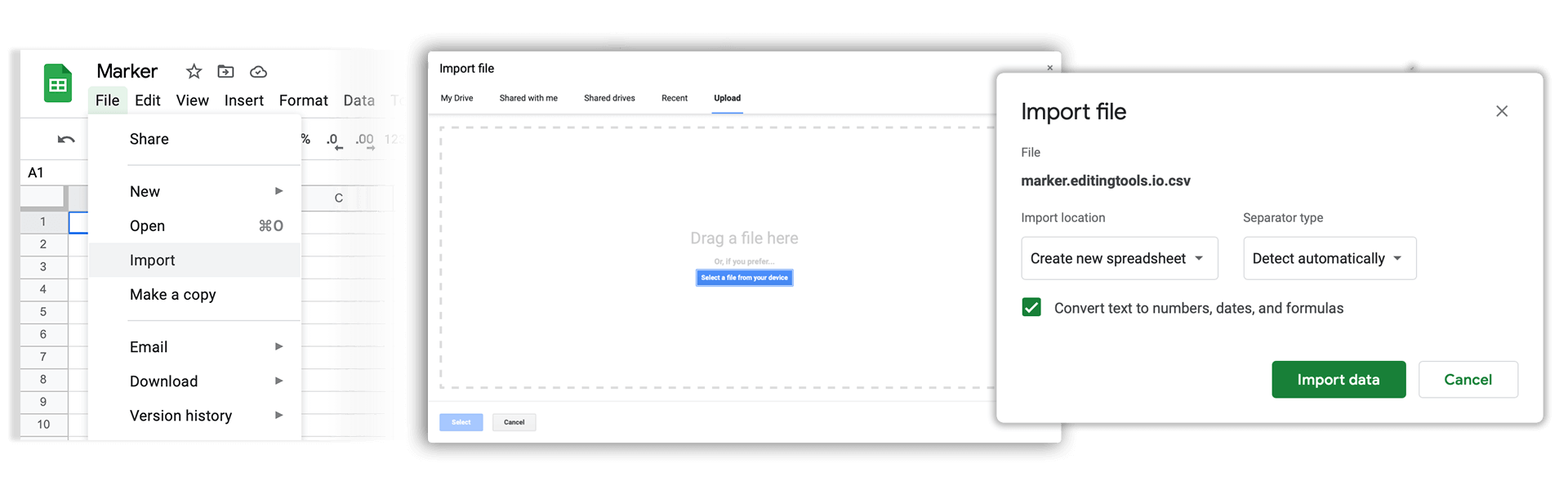
Open Google Sheets and go to "File -> Import". Upload the generated CSV file and press "Import Data" to generate the Sheet with all markers.
🚀 完成
暂时就是这些!如果您觉得本教程有用,请分享它以支持我们。如果您对改进工作流程有任何建议,请告诉我们!